How to make a mockup without Photoshop (step by step)
No Photoshop or designer? Learn to make a realistic product mockup in minutes, straight from your phone and free to start.
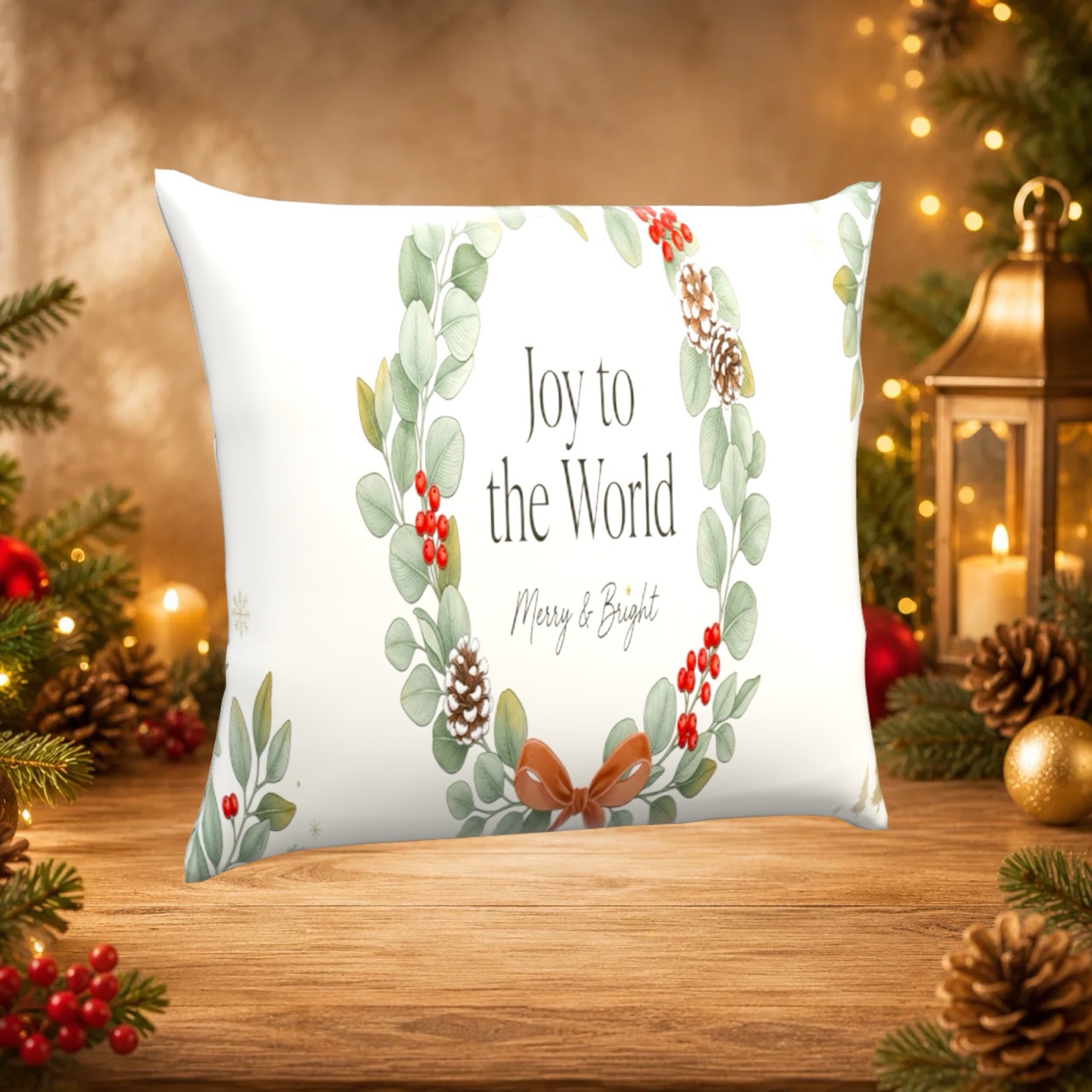
For years, “making a mockup” and “opening Photoshop” were practically the same thing. Download a PSD template, wrestle with smart objects, fit your design into perspective… a lot of steps for a single image, and locked to one angle on top of that. The good news: today you can make a mockup without Photoshop, with no design skills and no license to pay. Here’s how.
Why you no longer need Photoshop
Photoshop is powerful, but for a mockup it’s a sledgehammer to crack a nut. It has three problems if all you want is to show your product:
- Learning curve. Layers, masks, smart objects: time you don’t always have.
- Cost. A monthly subscription for, often, a single task.
- Flat results. A PSD template gives you one fixed photo. Want another angle? You need another template.
For most people selling personalized products, all of that is unnecessary.
Your options for making a mockup without Photoshop
There are three common routes:
- Online editors (Canva and the like). Good for quick flat mockups, but you depend on the browser and its catalog of 2D templates.
- Template generators (like Placeit or Smartmockups). Plenty of variety, though they’re usually paid and still produce fixed images.
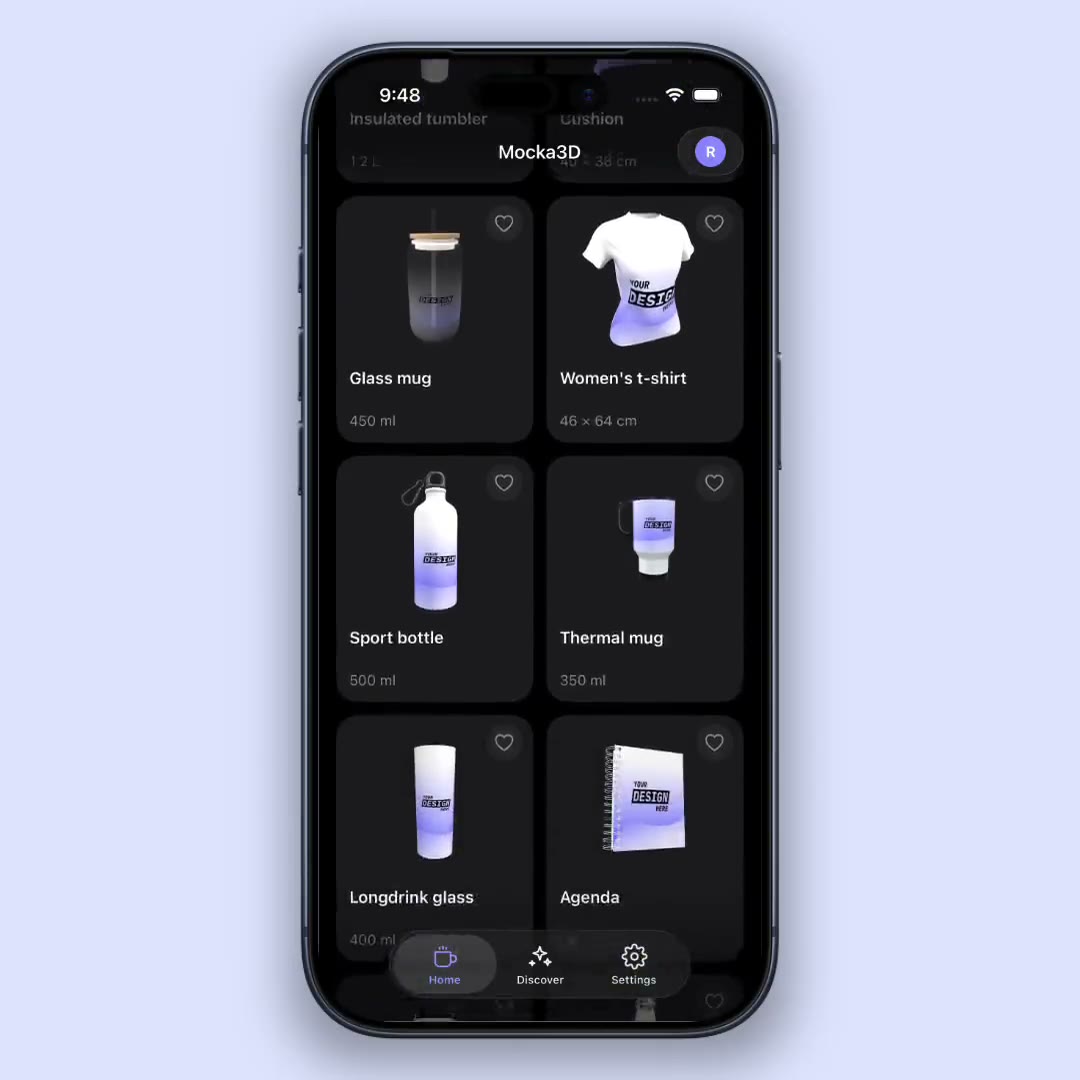
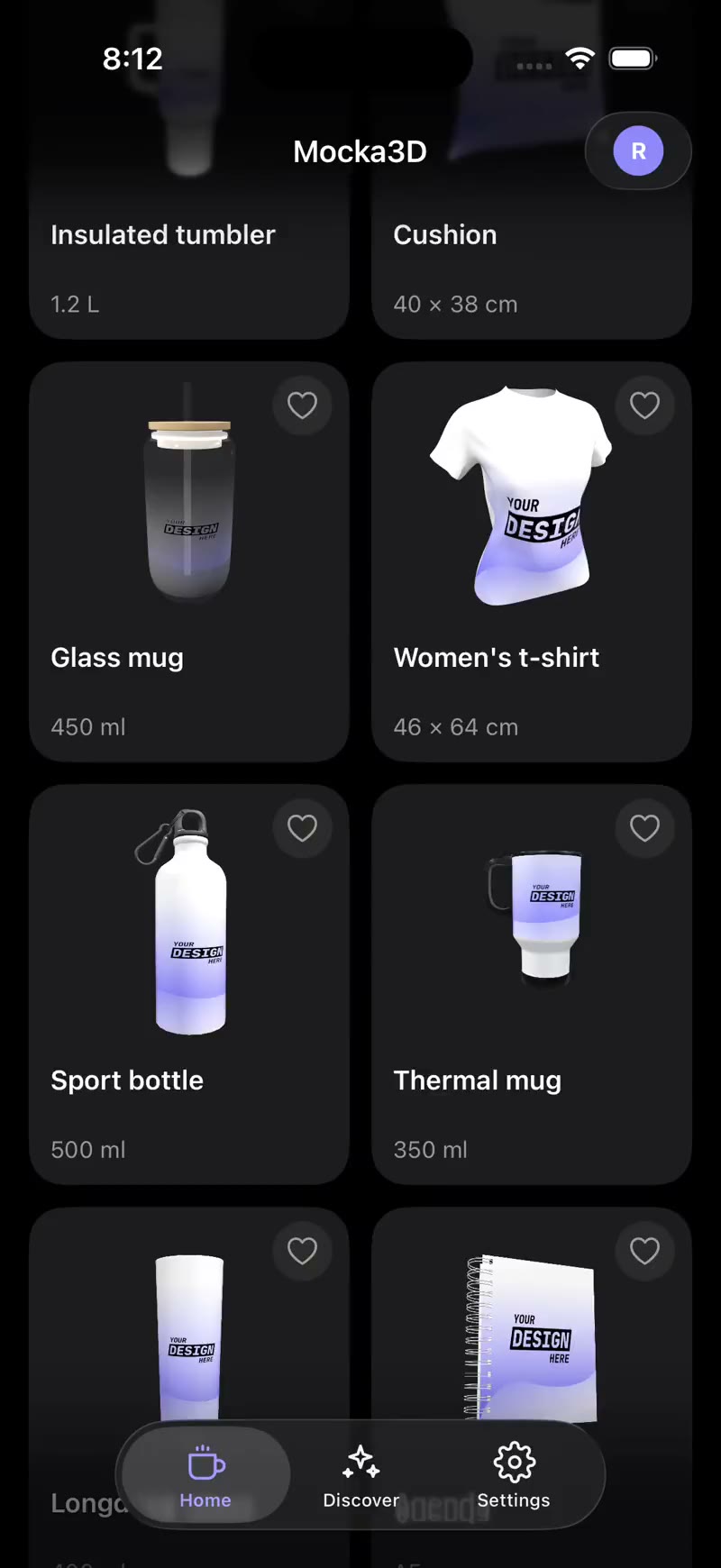
- 3D mockup apps. This is the quality leap: instead of pasting your design onto a photo, you apply it to a real 3D model you can spin and export as an image or video. And you do it from your phone.
Step by step with Mocka3D
Here’s the whole process:
- Open the app and upload your design. A PNG with a transparent background works best.
- Pick the product. Mug, magic mug, tumbler, notebook or sport bottle.
- Adjust position and scale. Drag the design with your finger until it sits where you want.
- Rotate the model in 3D to find the best angle.
- Export. An image ready for your store or an HD video for your feed.
What used to take half an hour in Photoshop is now a couple of minutes on your phone.
Tips to make your mockup look professional
- Use a high-resolution design (a crisp, non-pixelated PNG).
- Prefer a transparent background so the design blends into the product.
- Try several angles: a 3D render lets you pick the one that sells best.
- Export a short video of the product spinning to stand out on social.
Conclusion
You don’t need Photoshop or design skills to get mockups that look professional. You need your design and an app that does the heavy lifting. If you sell personalized products, that’s the shortcut: upload, pick, export.
Just getting started? Read what a mockup is and what it’s for first. Want a concrete example? See how to make a 3D mockup of a personalized mug.